
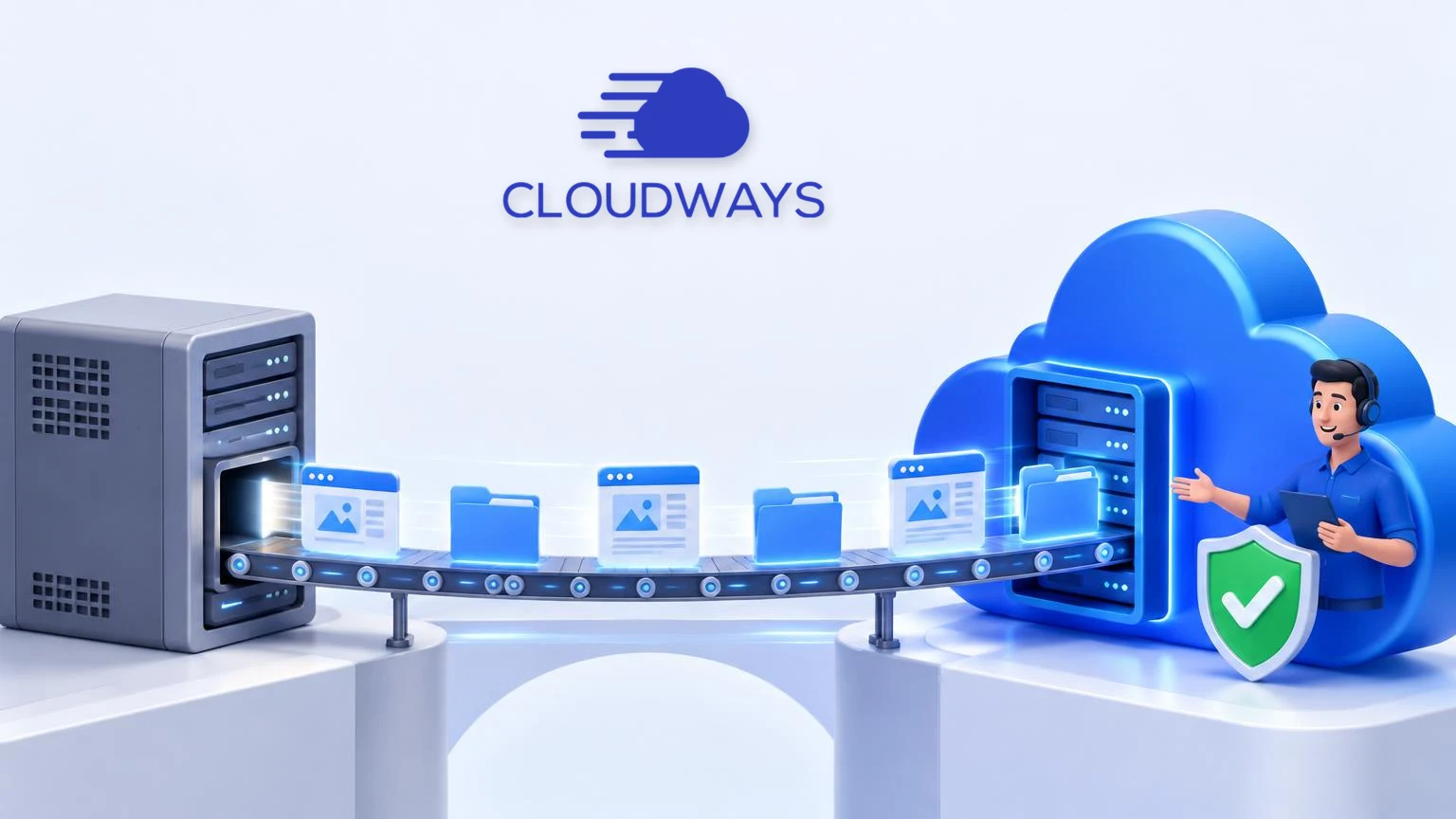

Quick answer: what the Cloudways free migration includes
For WordPress and WooCommerce sites, Cloudways advertises unlimited free expert-led migrations: its team copies your site to a Cloudways server, you test the copy on a temporary address, and you switch your domain's DNS only when everything works. The migration covers the website itself (files, database, media, plugins and themes), not email mailboxes or domain registration, both of which stay your responsibility.
Two honest caveats before the detail. First, Cloudways' own support guide describes the result as little to no downtime, not a guaranteed zero, the checklist below is what makes that true in practice. Second, trial accounts are not eligible for managed migrations, so on the free three-day trial you would move the site yourself with Cloudways' free plugin. Every fact here comes from Cloudways' own pages, checked in October 2026 and linked in the sources section. Affiliate disclosure: GoodHosters may earn a commission through the Cloudways link on this page. Read our disclosure and the main Cloudways review.
Your three ways to move a site to Cloudways
- Free managed migration. Cloudways' migrations team copies your site for you. Cloudways advertises this as unlimited and free for WordPress and WooCommerce sites on active plans, see its free migration page and migration cost guide. Best for business sites, stores, and anyone who does not want to touch files or databases. Not available on trial accounts, and not confirmed for non-WordPress applications.
- Cloudways WordPress Migrator plugin. A free plugin that copies a WordPress site to Cloudways by itself, with unlimited free uses. Best for straightforward WordPress sites when you are comfortable clicking through a plugin and checking the result, and the only free route during the trial.
- Manual move. You export files and the database, upload them to Cloudways, and fix configuration yourself. Best for developers, unusual setups, or non-WordPress applications the plugin does not cover.
Whichever route you pick, the safety rules are the same: keep your old hosting running until the Cloudways copy is tested, move your email somewhere safe before cancelling anything, and switch DNS last. The rest of this guide covers each route in order.
The free managed migration, step by step
This is the route we recommend for most buyers on a paid plan, because Cloudways' team does the technical work and you only test the result. The steps below follow Cloudways' managed migration guide; screens can change, so treat the exact button names as approximate.
- Create your Cloudways account and server. Managed migrations require an active plan, so start one before requesting, or use the three-day Flexible trial with the self-service plugin route instead. Launch a server sized for your site: our pricing guide explains the sizes, and the provider comparison helps you pick DigitalOcean, Vultr, Linode, AWS or Google Cloud.
- Request the migration from your Cloudways console. Cloudways' guide routes you through the platform's Add-ons section to the Application Migration request, where you pick the destination application and fill in your site details, connection details for the old host, and any additional notes the team needs.
- Wait for the copy, and keep your old site running. Do not cancel your old hosting or announce the move yet. Your live site stays on the old host throughout this step, so visitors see no change.
- Test the copy on the temporary Cloudways URL. Cloudways gives each application a temporary address. Check every important page, form and login there, for a store, place a complete test order. The checklist below has the full list.
- Switch your domain's DNS. When the copy passes, update your domain's DNS records at your registrar to point at the Cloudways server. DNS changes spread worldwide over hours; during that window some visitors reach the old server and some the new one, and both work.
- Watch for a few days, then cancel the old hosting. Keep the old plan active for several days after the DNS switch as a safety net. Cancel only when you are confident nothing was missed, and only after your email is safely hosted elsewhere.
Image Placeholder
Image: Cloudways migration request form in the console
The Cloudways WordPress Migrator plugin
For a WordPress site, Cloudways publishes a free WordPress Migrator plugin that copies your site to a Cloudways server without support involvement, with unlimited free uses. Cloudways' plugin guide covers both single sites and multisite networks. The general flow:
- Launch a WordPress application on your Cloudways server.
- Install the migrator plugin on your old WordPress site.
- Enter the Cloudways server and application details the plugin asks for, and start the copy.
- Test the copy on the temporary Cloudways URL, then switch DNS exactly as in the managed route above.
For a multisite network, Cloudways' guide adds extra preparation, configuring the destination for multisite and including all database tables, so follow that document closely rather than improvising. For very large or business-critical sites, the managed migration remains the safer choice on a paid plan. Either way, the same rule applies: the old site stays live until the copy is tested.
Moving a site to Cloudways yourself
A manual move makes sense for developers, non-WordPress applications, or setups the plugin does not support. The shape of the job:
- Export everything from the old host: the site's files (including uploads) and a full database export.
- Upload to Cloudways using SFTP or SSH with the credentials in your Cloudways console, and import the database.
- Update configuration: database credentials in your application config, any hard-coded paths or URLs, and PHP version or web-server settings your application expects.
- Test on the temporary URL, then switch DNS, the same final steps as every other route.
Cloudways is a managed platform without root access, so software that needs deep server-level changes may not be portable to it. If your application has unusual server dependencies, confirm with Cloudways support before planning the move.
How to avoid downtime during the move
A well-run migration has no outage in practice, because the old site keeps serving visitors until the new one is proven, which is why Cloudways' support guide can honestly promise little to no downtime. The rules that make that true:
- Never cancel the old hosting first. The old plan is your safety net until the Cloudways copy is tested and DNS has fully switched.
- Freeze changes during the final switch. Avoid publishing new content or taking orders on the old site while DNS is spreading, or those changes can be stranded on the old server. For a store, plan the switch for your quietest hours.
- Lower your DNS TTL a day before the switch if your DNS provider allows it, so the change spreads faster, a step Cloudways' own post-migration checklist recommends.
- Move email before you move the site. Cloudways does not host mailboxes. If your email lives at the old host, migrate it to a separate provider first, our pros and cons article covers the email gap.
- Test on the temporary URL before touching DNS. The temporary address shows the site exactly as visitors will get it after the switch.
Image Placeholder
Image: DNS switch timeline diagram
Pre-move and post-move checklists
Before you start
- Take a full backup of the old site (files and database) and store it somewhere independent.
- List everything tied to the old hosting account: websites, databases, email mailboxes, cron jobs, subdomains.
- Move email to a separate provider, or plan Cloudways' paid email add-on.
- Pick your Cloudways provider and server size, see our pricing guide and provider comparison.
After the copy, before the DNS switch
- Homepage, key pages, menus, images and uploads all load on the temporary URL.
- Forms, search, login and any membership areas work.
- For stores: a complete test order, payment confirmation, order emails and any subscription or webhook integrations.
- Permalinks, redirects and any scheduled tasks (cron jobs) behave as expected.
- SSL certificate is active on the Cloudways application.
After the DNS switch
- Check for mixed-content warnings and confirm SSL padlocks on key pages.
- Confirm email delivery still works, including MX and SPF/DKIM records if you moved email.
- Keep the old hosting for several more days, then cancel.
If you are still deciding whether Cloudways is the right destination at all, start with the full Cloudways review or try it via the button below.
No credit card needed for the trial. GoodHosters may earn a commission at no extra cost to you.
Cloudways migration: frequently asked questions
Is the Cloudways migration really free?
For WordPress and WooCommerce sites, yes: Cloudways advertises unlimited free expert-led migrations, plus unlimited free self-service moves with its migrator plugin. One catch we verified: trial accounts are not eligible for managed migrations, so on the three-day trial you would use the free plugin yourself, or start a paid plan first. For non-WordPress applications we could not confirm a free allowance, ask Cloudways support before relying on one.
How long does a Cloudways managed migration take?
Cloudways does not publish a fixed turnaround on the pages we checked, and timing depends on your site's size and how quickly you provide access details. Plan for days, not minutes: request the migration as soon as your plan is active, and keep your old hosting running until you have tested the copy on Cloudways.
Will my website go down during the migration?
Not if you do it correctly. Cloudways' own support guide describes the process as little to no downtime rather than guaranteeing zero. The migration copies your site while the original keeps running; you test the copy on a temporary Cloudways URL and only switch your domain's DNS after it checks out. DNS changes take hours to spread worldwide, during which some visitors see the old site and some the new, both work, so there is no outage.
Does Cloudways migrate my email accounts too?
No. Cloudways does not host email mailboxes, so email is not part of the website migration. If your email currently lives at your old host, move it to a separate email provider (or Cloudways' paid Rackspace email add-on) before you cancel the old hosting, or you will lose those mailboxes.
Can I move a WordPress site to Cloudways myself?
Yes. Cloudways publishes a free WordPress Migrator plugin that copies a WordPress site to a Cloudways server without support involvement, and Cloudways' current documentation covers both single sites and multisite networks. For large, unusual or business-critical sites, the free managed migration, where Cloudways' team does the move, is the safer choice.
What should I test before switching my domain to Cloudways?
On the temporary Cloudways URL, test your homepage and key pages, forms, login, and, for stores, a full test order including payment confirmation emails. Check that uploads, permalinks and any scheduled tasks work. Only update DNS after everything passes, and keep the old hosting active for several days afterwards as a safety net.
Do I need to move my domain registration to Cloudways?
No. Cloudways does not sell domain names, and your domain registration stays with your current registrar. You only change the domain's DNS records to point at your Cloudways server. Keep the domain registered where it is and renew it as usual.
Sources and the limits of this guide
Facts in this guide were checked against these pages in October 2026. Migration terms change; confirm them on Cloudways' site before relying on them.
- Cloudways free website migration page, the advertised unlimited free WordPress migrations.
- Cloudways migration cost guide, free expert-led and plugin migrations, published September 2026.
- Cloudways managed migration guide, how to request a managed migration and the little-to-no-downtime wording.
- Cloudways WordPress Migrator plugin page and its support guide: the free self-service plugin, including multisite.
- Cloudways post-migration checklist, TTL, SSL, mixed-content and email checks.
- Cloudways Flexible trial guide, the three-day trial terms.
- Cloudways pricing page, server prices and add-on rates.
Limitations: GoodHosters has not timed a Cloudways migration ourselves, so this guide makes no claims about turnaround time or success rates, it describes the process Cloudways documents and the safety practices that apply to any host move. Screens in the Cloudways console can differ from the descriptions here. Related reading: Cloudways promo codes, Cloudways for WordPress, and Cloudways for WooCommerce.