

⚡ Quick Summary
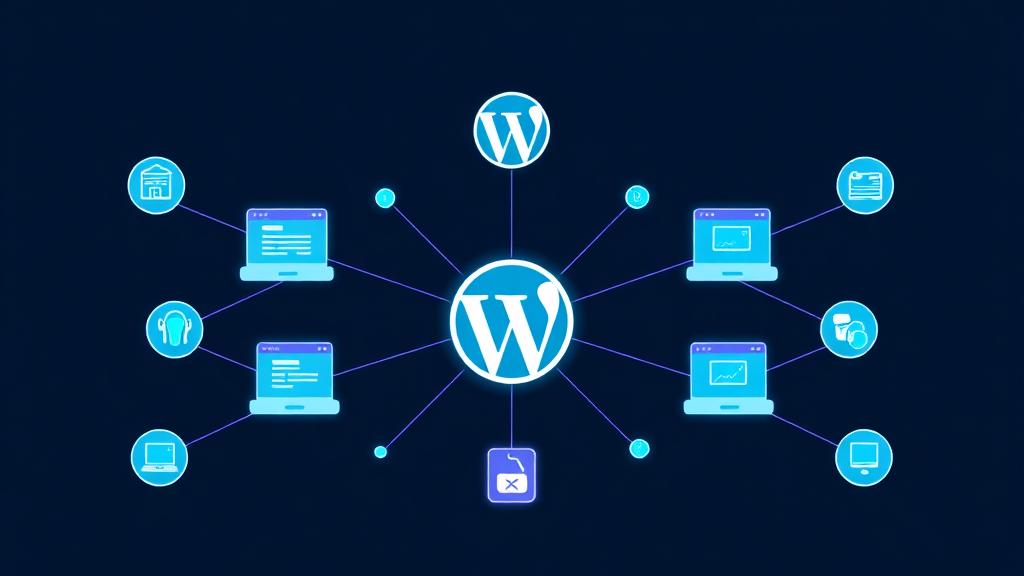
What it does: WordPress Multisite lets you run multiple WordPress websites from a single installation, sharing one set of core files, themes, and plugins.
Best for: Universities, franchises, agencies managing client sites, multi-language sites, and organizations with multiple departments.
Not for: Sites needing different plugins per install, sites you'll need to transfer ownership of, or very high-traffic individual sites.
Best hosting: Kinsta ($35/mo) for agencies, Cloudways ($14/mo) for developers, SiteGround ($14.99/mo) for beginners.
What Is WordPress Multisite?
WordPress Multisite is a built-in feature that transforms a single WordPress installation into a network of sites. Instead of maintaining separate WordPress installs (each with their own core files, database, plugins, and themes) Multisite shares one codebase across all sites while keeping content and settings separate.
Shared Resources
- WordPress core files (one update for all sites)
- Plugin & theme files (install once, activate per site)
- User database (single sign-on across network)
- Super Admin dashboard for network management
Separate Per Site
- Content (posts, pages, media)
- Site settings & customizations
- Active themes (one per site from network pool)
- Active plugins (chosen from network-available)
- User roles (site-specific permissions)
Who uses it? WordPress.com itself runs on Multisite, powering millions of blogs. Universities use it for department sites (Harvard has 700+ sites on one network). Franchises use it for location-specific sites. News organizations use it for regional editions.
When to Use (and Not Use) Multisite
| ✅ Use Multisite When | ❌ Don't Use Multisite When |
|---|---|
| Sites share similar functionality & plugins | Each site needs unique/incompatible plugins |
| You want centralized updates & management | Sites will be transferred to different owners |
| Sites are related (same org/brand) | Sites are completely unrelated businesses |
| You need single sign-on across sites | Sites need different PHP/WP versions |
| You manage 5+ sites with similar stacks | You have 1-3 sites with different needs |
| Budget is a concern (one hosting plan) | Maximum isolation between sites is required |
Hosting Requirements for Multisite
Not all hosting plans support Multisite. Here's what you need at minimum:
| Requirement | Minimum | Recommended |
|---|---|---|
| RAM | 512MB | 2GB+ (4GB for 20+ sites) |
| Storage | 10GB SSD | 50GB+ NVMe SSD |
| PHP Version | 8.0+ | 8.2+ with OPcache |
| Database | MySQL 5.7 / MariaDB 10.4 | MySQL 8.0 / MariaDB 10.6 |
| SSL | Wildcard SSL (subdomains) | Wildcard + per-domain SSL |
| Server | Apache with mod_rewrite | Nginx or LiteSpeed |
| DNS | Wildcard DNS record (*) | Wildcard DNS + domain mapping |
Step-by-Step Setup Guide
Enable Multisite in wp-config.php
Open your wp-config.php file and add the following line above the "That's all, stop editing!" comment:
define( 'WP_ALLOW_MULTISITE', true );Run Network Setup
After saving wp-config.php, go to Tools → Network Setup in your WordPress admin. Choose between subdomains or subdirectories and set your network title.
Add Generated Code to wp-config.php
WordPress will generate code snippets. Add the Multisite constants to wp-config.php:
define( 'MULTISITE', true );
define( 'SUBDOMAIN_INSTALL', false ); // true for subdomains
define( 'DOMAIN_CURRENT_SITE', 'example.com' );
define( 'PATH_CURRENT_SITE', '/' );
define( 'SITE_ID_CURRENT_SITE', 1 );
define( 'BLOG_ID_CURRENT_SITE', 1 );Update .htaccess (Apache) or Nginx Config
Replace your existing rewrite rules with the ones WordPress provides. For Nginx, you'll need to add specific location blocks for the Multisite URL structure.
Log In and Configure Network
Log back in (you'll be redirected). You'll now see a "My Sites" menu and "Network Admin" dashboard. Configure: Network Settings, default theme, registration settings, and upload limits.
Create Your First Sub-Site
Go to Network Admin → Sites → Add New. Enter the site address, title, and admin email. The site is instantly live with your default theme.
Subdomains vs Subdirectories
This is the most important decision you'll make during setup, and it cannot be changed later without starting over.
| Factor | Subdomains site.example.com | Subdirectories example.com/site |
|---|---|---|
| SEO Authority | Each site builds separate authority | Sites inherit main domain authority ✅ |
| DNS Setup | Requires wildcard DNS record | No DNS changes needed ✅ |
| SSL Certificates | Needs wildcard SSL | Single SSL covers all ✅ |
| Brand Separation | Sites feel more independent ✅ | Sites feel part of main site |
| Domain Mapping | Works naturally ✅ | Still works but less intuitive |
| Hosting Compatibility | Needs wildcard DNS support | Works on almost all hosts ✅ |
| Best For | Different brands, client sites | Related content, departments |
Our recommendation: Use subdirectories unless you have a specific reason for subdomains. They're easier to set up, better for SEO (shared domain authority), and compatible with more hosting providers.
Network Admin Dashboard
The Network Admin is your command center. As Super Admin, you get exclusive access to:
Sites
Create, edit, deactivate, archive, or delete any site. View stats, change domains, and manage per-site settings.
Users
Manage all users across the network. Assign users to sites, promote to Super Admin, or restrict registration.
Themes
Install themes once, then enable/disable per site. Network-enable a theme to make it available to all site admins.
Plugins
Install plugins network-wide or let site admins activate individually. Network Activate forces a plugin on all sites.
Settings
Control registration (open/closed), upload file types, max upload size, default language, and menu settings.
Updates
One-click updates for WordPress core, themes, and plugins, applied across the entire network simultaneously.
Managing Themes & Plugins
Plugin and theme management is one of Multisite's biggest advantages, and its trickiest area. Here's how it works:
Plugin Compatibility
Not all plugins work with Multisite. Before installing, check:
✅ Usually Compatible
Yoast SEO, Wordfence, WooCommerce, Elementor, WP Rocket, Gravity Forms
⚠️ Needs Multisite Addon
WPML, WooCommerce (multi-store), some backup plugins, caching plugins
❌ Often Incompatible
Plugins that modify core tables, some custom post type plugins, certain migration tools
Pro tip: Use "Network Activate" sparingly. It forces a plugin on every site with no opt-out. Instead, enable plugins network-wide and let site admins activate them individually. This gives flexibility while keeping the plugin pool controlled.
User Roles & Permissions
Multisite adds a new role layer on top of standard WordPress roles:
| Role | Scope | Key Permissions |
|---|---|---|
| Super Admin | Entire network | Everything: create/delete sites, install plugins/themes, manage network users, access all site dashboards |
| Administrator | Single site | Manage the assigned site: content, users, activated plugins, theme customization. Cannot install plugins/themes. |
| Editor | Single site | Publish and manage all posts/pages on their assigned site. No plugin or theme access. |
| Author | Single site | Write and publish their own posts only. |
| Contributor | Single site | Write posts but cannot publish, needs editor/admin approval. |
| Subscriber | Single site | Read content and manage their own profile. |
Important: Site Administrators on Multisite have fewer permissions than on a standard WordPress install. They cannot install themes/plugins, only activate from the network pool. This is by design for network security.
Performance Optimization
Multisite networks have unique performance considerations because all sites share resources:
Object Caching (Required)
Install Redis or Memcached. Without object caching, every page load queries the database for site-specific options. With 20+ sites, this crushes performance. Redis is preferred, it handles Multisite's wp_X_options table lookups efficiently.
CDN (Highly Recommended)
Use Cloudflare or a CDN that supports wildcard domains. Each sub-site generates its own static assets, without a CDN, your server handles every CSS, JS, and image request across all sites.
Database Optimization
Each Multisite sub-site creates 10+ database tables. A 50-site network has 500+ tables. Run regular optimization: remove revisions, clean transients, and consider database table partitioning for large networks.
PHP Workers
Multisite needs more PHP workers than a single site. Rule of thumb: 2 PHP workers per actively-trafficked site. A 10-site network needs at minimum 8-12 PHP workers. Budget hosting (2-4 workers) will cause timeout errors.
Security Best Practices
Multisite amplifies security risks: one vulnerability can compromise every site. Follow these essential practices:
Limit Super Admin Accounts
Only 1-2 trusted people should have Super Admin. Use strong passwords + 2FA for all Super Admin accounts.
Vet All Plugins Centrally
Only Super Admins can install plugins. Test every plugin on a staging network before adding to production.
Network-Wide Security Plugin
Install Wordfence or Sucuri at the network level. Enable login throttling, malware scanning, and firewall rules.
Disable File Editing
Add define('DISALLOW_FILE_EDIT', true); to wp-config.php. Prevents code injection through the theme/plugin editor.
Regular Backups
Use a Multisite-compatible backup plugin (UpdraftPlus Premium, BlogVault, ManageWP). Test restores regularly.
Restrict Upload Types
In Network Settings, limit allowed file types. Remove .svg, .php, and other potentially dangerous formats.
Best Hosting for WordPress Multisite
Not all WordPress hosts support Multisite well. We tested these providers with 20-site networks under realistic load:
✅ Pros
⚠️ Cons
The gold standard for WordPress Multisite hosting. Kinsta's infrastructure handles hundreds of sites without performance degradation.
✅ Pros
⚠️ Cons
Best price-to-performance ratio for Multisite. Choose DigitalOcean for budget networks or AWS/GCP for enterprise scale.
✅ Pros
⚠️ Cons
The easiest Multisite setup experience. Perfect for first-time network administrators managing up to 25 sites.
✅ Pros
⚠️ Cons
Enterprise-grade managed Multisite with the best security and compliance features. Ideal for networks that can't afford downtime.
Common Mistakes to Avoid
❌ Using shared hosting for 10+ sites
✅ Multisite needs dedicated resources. Use VPS or managed WordPress hosting with guaranteed PHP workers.
❌ Not planning the URL structure first
✅ You can't switch between subdomains and subdirectories after setup without starting over. Decide before installing.
❌ Giving too many people Super Admin
✅ Super Admin can delete any site, install any plugin, and access any dashboard. Limit to 1-2 people maximum.
❌ Network Activating every plugin
✅ It forces plugins on all sites. Only Network Activate truly universal plugins (security, caching). Let site admins choose the rest.
❌ Skipping object caching
✅ Without Redis/Memcached, database queries multiply with each site. Object caching is not optional for networks over 5 sites.
❌ No network-wide backup strategy
✅ Standard backup plugins often miss Multisite tables. Use BlogVault, UpdraftPlus Premium, or ManageWP for proper network backups.
Frequently Asked Questions
How many sites can WordPress Multisite handle?
Can I convert an existing WordPress site to Multisite?
Can each site on the network have its own domain?
What happens if one site on the network gets hacked?
Is WordPress Multisite good for client sites?
Does WordPress Multisite affect SEO?
Ready to Build Your WordPress Network?
Find hosting that's built for Multisite, with the resources, support, and features your network needs to thrive.
Find Your Hosting