
Two-Factor Authentication for Hosting: Setup Guide for Every Provider
Your hosting account is the keys to your entire online presence, website, email, databases, and customer data. A single compromised password means total loss. 2FA blocks 99.9% of automated account takeover attacks. Here's how to set it up on every major provider.

Web hosting enthusiast who tests providers and breaks down features, pricing, and real world speed
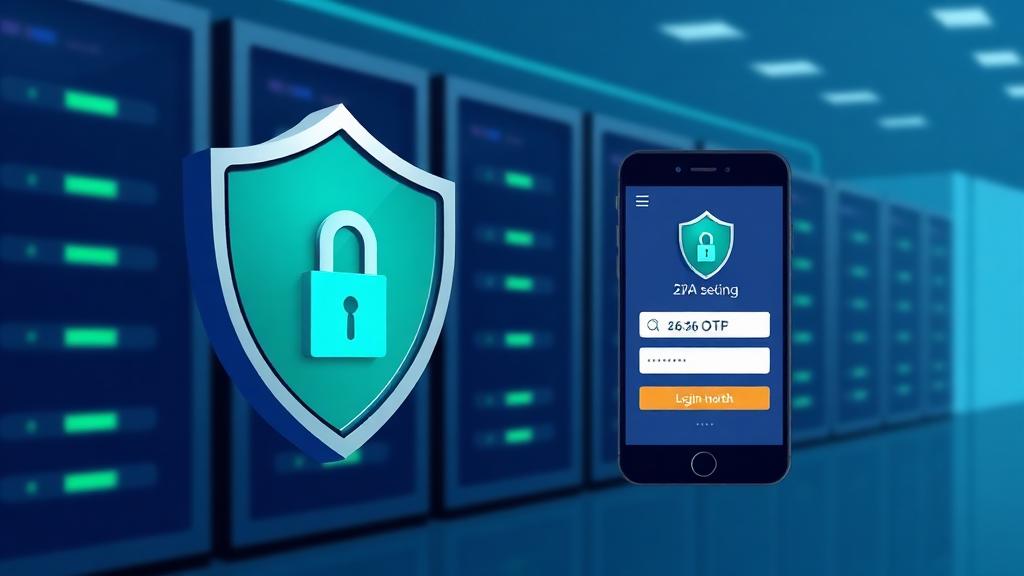
Why 2FA Matters for Hosting
A compromised hosting account is catastrophically worse than a hacked social media profile. Attackers with hosting access can steal customer data, inject malware, redirect DNS, send spam from your domain, and destroy backups: all within minutes.
| Threat | Without 2FA | With 2FA |
|---|---|---|
| Credential stuffing (leaked password reuse) | Account compromised in seconds | Blocked, attacker can't provide 2nd factor |
| Phishing email (fake login page) | Credentials stolen and used immediately | Stolen password alone is useless |
| Brute force attack | Weak passwords cracked in hours | Blocked even if password is guessed |
| Insider threat (shared password) | Full access with no audit trail | Requires physical device, auditable |
| SIM-swapping (SMS-based) | SMS codes intercepted | Blocked with TOTP or hardware key (not SMS) |
| Keylogger malware | Password captured silently | TOTP codes expire in 30s, unusable by attacker |
Stat: Google reports that TOTP-based 2FA blocks 100% of automated bot attacks, 99% of bulk phishing, and 90% of targeted attacks. Hardware security keys block 100% of all three categories.
2FA Methods Compared
| Method | Security Level | Convenience | Phishing Resistant | Cost | Best For |
|---|---|---|---|---|---|
| SMS / Text Message | ⚠️ Low | High | ❌ No | Free | Better than nothing; avoid if possible |
| TOTP App (Authenticator) | ✅ High | Medium | ❌ No (manual entry) | $0 (free apps) | Most hosting users, best balance |
| Push Notification (Duo, MS) | ✅ High | High | ⚠️ Partial | $0–3/user/mo | Teams with MDM (mobile device mgmt) |
| Hardware Key (YubiKey) | 🔒 Highest | Medium | ✅ Yes (cryptographic) | $25–55 per key | Admins, root accounts, high-value targets |
| Passkeys (FIDO2/WebAuthn) | 🔒 Highest | High | ✅ Yes (device-bound) | Free (built into devices) | Modern providers, the future of auth |
| Email OTP | ⚠️ Low | Low | ❌ No | Free | Avoid, email is often the weakest link |
Our recommendation: Use TOTP (authenticator app) for all hosting accounts as a minimum. Use hardware security keys for root/admin accounts on AWS, GCP, and domain registrars. Avoid SMS; it's vulnerable to SIM-swapping.
Best Authenticator Apps (2026)
| App | Cloud Backup | Multi-Device | Desktop | Price | Our Pick |
|---|---|---|---|---|---|
| Authy (Twilio) | ✅ Encrypted | ✅ Yes | ✅ Yes | Free | 🏆 Best overall |
| 1Password | ✅ Vault | ✅ Yes | ✅ Yes | $2.99/mo | Best if already using it |
| Bitwarden Authenticator | ✅ Vault | ✅ Yes | ✅ Yes | Free / $10/yr | Best free password manager + TOTP |
| Google Authenticator | ✅ (2024+) | ⚠️ Limited | ❌ No | Free | Simplest option |
| Microsoft Authenticator | ✅ iCloud/Google | ⚠️ Limited | ❌ No | Free | Best for Microsoft ecosystem |
Step-by-Step Setup by Hosting Provider
Click-by-click instructions for enabling 2FA on the most popular hosting dashboards and control panels.
cPanel / WHM
- 1Log in to cPanel → Security → Two-Factor Authentication.
- 2Click 'Set Up Two-Factor Authentication.'
- 3Scan the QR code with Google Authenticator, Authy, or 1Password.
- 4Enter the 6-digit code to verify.
- 5Save your scratch codes (backup codes) somewhere secure.
- 6For WHM (reseller/root): WHM → Security Center → Two-Factor Authentication → Enable for all accounts.
💡 Pro tip: Enable 2FA for both cPanel AND WHM separately; they use different auth systems. If you manage client sites, enforce 2FA at the WHM level to require it for all cPanel accounts.
Plesk
- 1Log in to Plesk → click your username (top-right) → Edit Profile.
- 2Scroll to 'Multi-Factor Authentication' → toggle ON.
- 3Scan the QR code with your authenticator app.
- 4Enter the 6-digit verification code.
- 5Download recovery codes and store securely.
- 6To enforce server-wide: Tools & Settings → Security Policy → Require MFA for all users.
💡 Pro tip: Plesk's built-in MFA supports both admin and customer accounts. For resellers: enable the 'Require MFA' policy so new subscriptions automatically inherit the requirement.
Cloudways
- 1Log in to Cloudways → Account → Security.
- 2Click 'Enable Two-Factor Authentication.'
- 3Scan the QR code with Google Authenticator or Authy.
- 4Enter the 6-digit code to confirm.
- 5Save the backup recovery codes.
- 6For team members: Account → Team → edit member → require 2FA.
💡 Pro tip: Cloudways also supports IP whitelisting for an extra layer. Combine 2FA + IP whitelist to restrict dashboard access to your office/VPN IP addresses only.
SiteGround
- 1Log in to SiteGround → User Settings (avatar icon, top-right).
- 2Select 'Security' → Two-Factor Authentication → Enable.
- 3Scan the QR code with your authenticator app.
- 4Enter the 6-digit code to verify.
- 5Save backup codes in a password manager.
- 6Note: Each collaborator must enable 2FA individually.
💡 Pro tip: SiteGround also offers login email notifications. Enable both 2FA and login alerts for maximum account security. For Site Tools access, 2FA applies to the main SiteGround account, not individual site logins.
Kinsta
- 1Log in to MyKinsta → User Settings (bottom-left).
- 2Click 'Enable Two-Factor Authentication.'
- 3Choose method: Authenticator App or Hardware Security Key.
- 4For TOTP: scan QR code with your app. For hardware key: insert and tap.
- 5Enter verification code / confirm key tap.
- 6Download recovery codes (10 single-use codes).
- 7Company-wide: Company Settings → Security Policies → Require 2FA for all users.
💡 Pro tip: Kinsta is one of the few hosts supporting hardware security keys (FIDO2/WebAuthn). YubiKey is the most phishing-resistant 2FA method; use it for all admin accounts.
AWS (Amazon Web Services)
- 1Sign in to AWS Console → IAM → Users → select your user.
- 2Click 'Security credentials' tab → 'Assign MFA device.'
- 3Choose: Authenticator app, Security key, or Hardware TOTP token.
- 4For TOTP: scan QR code, enter two consecutive codes (to verify clock sync).
- 5For root account: AWS Console → Account → Security credentials → Activate MFA.
- 6Create an IAM policy to enforce MFA: attach aws:MultiFactorAuthPresent condition to all sensitive actions.
💡 Pro tip: CRITICAL: Enable MFA on the AWS root account immediately, a compromised root account gives unlimited access to all resources. Use a dedicated hardware key for root, TOTP apps for IAM users. Consider aws:MultiFactorAuthAge to require re-authentication for sensitive operations.
DigitalOcean
- 1Log in to DigitalOcean → Settings → Security.
- 2Click 'Enable Two-Factor Authentication.'
- 3Choose: Authentication App (recommended) or SMS.
- 4Scan the QR code with your authenticator app.
- 5Enter the 6-digit code to verify.
- 6Save backup codes (displayed once, store in password manager).
- 7To enforce for team: Settings → Team → require 2FA for all members.
💡 Pro tip: DigitalOcean requires 2FA for API token generation. This means any automated tooling (Terraform, Ansible) is protected by default. Always choose TOTP over SMS, SMS is vulnerable to SIM-swapping attacks.
WordPress Dashboard 2FA
Your hosting account and WordPress admin are separate login systems. Securing one doesn't protect the other. Enable 2FA on both.
| Plugin | Methods | Role Enforcement | Price | Notes |
|---|---|---|---|---|
| WP 2FA | TOTP, email, push | ✅ Per-role + grace period | Free / $29/yr | 🏆 Best for most WordPress sites |
| Two-Factor (core team) | TOTP, email, FIDO2 | ⚠️ Per-user only | Free | Made by WordPress core contributors |
| Wordfence Login Security | TOTP, FIDO2/WebAuthn | ✅ Per-role enforcement | Free | Standalone module (doesn't need full Wordfence) |
| miniOrange 2FA | TOTP, SMS, push, QR, email | ✅ Per-role + custom | Free / $59/yr | Most methods, useful for custom setups |
| iThemes Security Pro | TOTP, email | ✅ Per-role + trusted devices | $99/yr | Part of larger security suite |
SSH Two-Factor Authentication
For VPS and dedicated servers, adding 2FA to SSH access adds another layer beyond SSH keys. This protects against stolen private keys.
1. Install Google Authenticator PAM
sudo apt install libpam-google-authenticator (Debian/Ubuntu) or sudo yum install google-authenticator (CentOS/RHEL).
2. Run setup for each user
Run google-authenticator as the user. Answer prompts: time-based tokens (yes), update .google_authenticator (yes), disallow reuse (yes), rate limiting (yes).
3. Configure PAM
Add auth required pam_google_authenticator.so to /etc/pam.d/sshd (at the top of the file).
4. Update SSH config
In /etc/ssh/sshd_config: set ChallengeResponseAuthentication yes and AuthenticationMethods publickey,keyboard-interactive.
5. Restart SSH
sudo systemctl restart sshd. Test in a NEW terminal window before closing your current session.
6. Test the setup
SSH in from a new terminal. You should be prompted for your SSH key passphrase AND a verification code from your authenticator app.
⚠️ Warning: Always test SSH 2FA in a new terminal session while keeping your current session open. If misconfigured, you could lock yourself out. Have console access (VNC/IPMI/provider console) ready as a backup.
Backup & Recovery Codes
| Storage Method | Security | Accessibility | Recommendation |
|---|---|---|---|
| Password manager (1Password, Bitwarden) | 🔒 High (encrypted vault) | ✅ Any device with app | 🏆 Best for most people |
| Encrypted USB drive | 🔒 High (offline, encrypted) | ⚠️ Physical access needed | Good secondary backup |
| Printed paper in a safe | ⚠️ Medium (physical security) | ⚠️ Physical access needed | Good disaster recovery backup |
| Plain text file on desktop | ❌ Low (unencrypted, exposed) | ✅ Immediately accessible | ❌ Never do this |
| Email to yourself | ❌ Low (email often compromised first) | ✅ Any device | ❌ Never do this |
| Screenshot in photos | ❌ Low (cloud-synced, unencrypted) | ✅ Any device | ❌ Never do this |
Enforcing 2FA for Teams
| Provider | Enforcement Method | Grace Period | Compliance Reporting |
|---|---|---|---|
| AWS (IAM) | IAM policy with MFA condition key | None (immediate) | ✅ IAM Credential Report |
| Kinsta | Company Settings → Security Policies | 7 days default | ✅ Activity Log |
| Cloudways | Team Settings → Require 2FA | None (immediate) | ⚠️ Manual audit |
| DigitalOcean | Team Settings → Security | 14 days | ⚠️ Manual audit |
| cPanel/WHM | Security Center → 2FA Policy | Configurable | ⚠️ Per-account check |
| Plesk | Security Policy → Require MFA | Configurable | ✅ Login audit log |
| WordPress (WP 2FA) | Per-role enforcement + grace period | 1–14 days (configurable) | ✅ Compliance dashboard |
Common 2FA Mistakes
❌ Using SMS as your only 2FA method
✅ Fix: Switch to TOTP (authenticator app). SMS is vulnerable to SIM-swapping, attackers call your carrier and transfer your number.
❌ Not saving backup/recovery codes
✅ Fix: Store codes in a password manager immediately after 2FA setup. Without them, a lost phone means contacting support for days.
❌ Enabling 2FA on hosting but not domain registrar
✅ Fix: Your domain registrar is even more critical. Enable 2FA + registrar lock on Cloudflare, Namecheap, Google Domains, etc.
❌ Sharing authenticator app across team members
✅ Fix: Each team member should have their own 2FA enrollment. Shared secrets can't be audited or revoked individually.
❌ Not testing 2FA before logging out
✅ Fix: Always verify your authenticator code works before ending your current session. Keep a backup session open.
❌ Using the same TOTP secret for multiple accounts
✅ Fix: Each account should have its own unique 2FA enrollment. If one secret is compromised, others remain secure.
❌ Forgetting to remove 2FA for departing team members
✅ Fix: Add 2FA deprovisioning to your offboarding checklist. Revoke access immediately when someone leaves the team.
❌ Not enabling 2FA on the email account used for hosting
✅ Fix: Your hosting recovery email is the 'master key.' If an attacker compromises it, they can reset hosting passwords. Enable 2FA on your email first.
Frequently Asked Questions
Which 2FA app is best for hosting accounts?
What happens if I lose my phone with 2FA?
Is SMS-based 2FA secure enough for hosting?
Should I enable 2FA on my domain registrar too?
How do I set up 2FA for SSH access?
Can I use 2FA with automated deployments (CI/CD)?
How often should I rotate 2FA secrets?
What's the difference between 2FA, MFA, and 2SV?
Need Secure Hosting With Built-in 2FA?
Find hosting providers with mandatory 2FA, hardware key support, and enterprise-grade security policies built in.
Find Secure Hosting