

🧪 Quick Summary: 4 Ways to Create a Staging Site
What Is a Staging Environment?
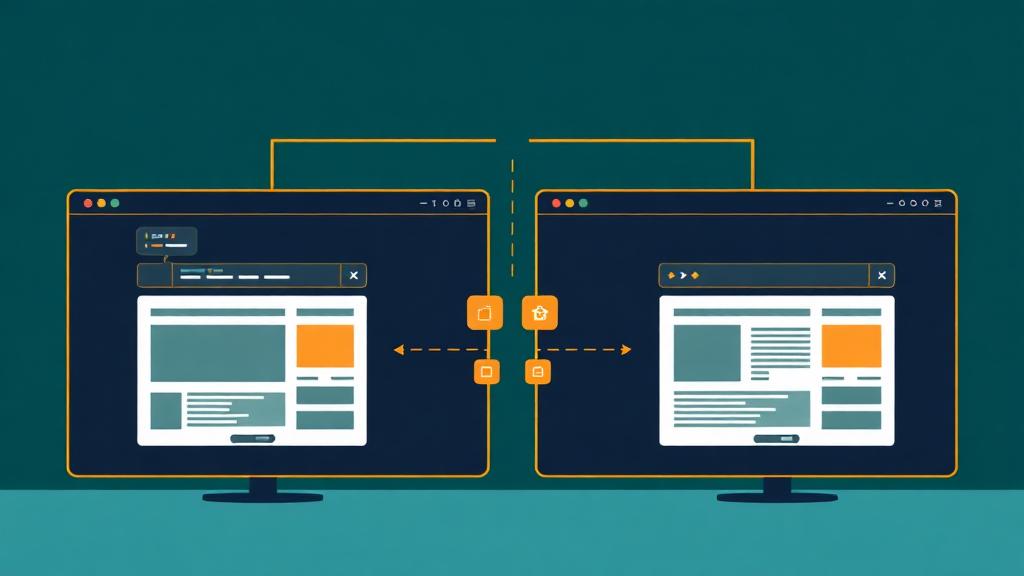
A staging environment is an exact copy of your live website running on a separate URL where you can safely test changes. It mirrors your production site's files, database, plugins, and configuration—but is invisible to your visitors and search engines.
Think of it as a dress rehearsal before opening night. You test everything—lighting, costumes, blocking—without an audience watching. If something goes wrong, no one sees it.
🔄 The Development Workflow
Why You Need a Staging Site
Prevent Broken Deployments
Test WordPress core updates, plugin upgrades, and PHP version changes before they touch your live site. 43% of WordPress site breakages come from untested plugin updates.
Client & Team Review
Share a staging URL with clients or stakeholders for approval before going live. No more 'can you change this on the live site' back-and-forth that risks breaking things.
Safe A/B Testing
Experiment with new layouts, checkout flows, or content structures on staging. Compare performance with tools like GTmetrix before committing to production.
Easy Rollback
If something looks wrong on staging, just delete it and re-clone. No downtime, no emergency fixes, no 3 AM panic. Your production site stays untouched throughout.
Code Quality
Test custom CSS, PHP modifications, and JavaScript changes in an environment identical to production. Catch environment-specific bugs that local development misses.
Database Safety
Test database migrations, WooCommerce updates, or content restructuring without risking real customer data, orders, or user accounts.
Staging vs Local vs Production
| Feature | Local Dev | Staging | Production |
|---|---|---|---|
| Server environment | Your computer | Real server (identical to prod) | Live server |
| Database | Local MySQL | Clone of production DB | Live data |
| URL | localhost:8080 | staging.yourdomain.com | yourdomain.com |
| Accessible to others | ❌ No | ✅ Yes (password-protected) | ✅ Public |
| Search engines | ❌ Hidden | ❌ Blocked (noindex) | ✅ Indexed |
| SSL/HTTPS | ⚠️ Self-signed | ✅ Real SSL | ✅ Real SSL |
| Email sending | ⚠️ Trapped/logged | ⚠️ Disabled or sandbox | ✅ Live |
| Payment gateways | 🧪 Test mode | 🧪 Sandbox mode | 💳 Live |
| Speed accuracy | ❌ Not representative | ✅ Matches production | ✅ Baseline |
| Risk level | None | None | High |
Method 1:Hosting Panel Staging (Easiest)
Many premium hosting providers include one-click staging built into their dashboards. This is by far the easiest method—no plugins, no command line, no configuration.
Hosting Providers With Built-In Staging
Site Tools → WordPress → Staging → Create. Clones entire site in ~30 seconds. Push changes to live with one click. Supports selective push (files only, DB only, or both).
Applications → select app → Staging. Full clone with separate URL and database. Pull from production or push to production. Team access controls.
MyKinsta → Sites → select site → Environment → Staging. Premium staging with full environment copy. Push selective components.
Sites → select site → Add Staging. Three environments available (Dev, Staging, Production). Git integration built in.
hPanel → WordPress → Staging. Create and manage staging with a clean interface. Push changes to live site when ready.
✅ Why This Is Our Top Recommendation
Hosting-level staging is the most reliable method because it creates a true server-level clone—same PHP version, same server configuration, same SSL setup. Plugin-based staging runs inside WordPress, which means it can't replicate server-level settings. If your host offers staging, always use it over plugins.
Method 2:WordPress Plugins
If your host doesn't offer staging, WordPress plugins can create a staging copy within your existing hosting account.
The most popular staging plugin. Creates a staging clone in a subdirectory (yourdomain.com/staging). Pro version adds: push staging to production, external database support, scheduled backups, and multisite support.
Cloud-based staging on BlogVault's servers—doesn't consume your hosting resources. Includes real-time backups, one-click restore, and malware scanning. Staging site runs on a separate server with its own URL.
Creates staging on WP Stagecoach's cloud servers. Unique 'selective import' feature lets you merge specific changes (just theme files, just a plugin, just certain DB tables) back to production.
🔧 WP Staging Setup (Step-by-Step)
Method 3:Manual Setup (VPS/Custom Stack)
For non-WordPress sites or custom applications, you'll need to set up staging manually. This gives you complete control over the staging environment.
🖥️ Manual Staging Setup
Add staging.yourdomain.com in your DNS. Point it to your server. Create a new virtual host in Nginx/Apache for this subdomain with its own document root (/var/www/staging).
server {
  server_name staging.yourdomain.com;
  root /var/www/staging;
}Copy your entire production site to the staging directory. Use rsync for efficiency—it only copies changed files.
rsync -avz /var/www/production/ /var/www/staging/Dump the production database and import into a new staging database. Update the staging site's config to use the new database.
mysqldump -u root -p production_db > prod_backup.sql
mysql -u root -p staging_db < prod_backup.sqlChange site URLs in the staging database (for WordPress: wp_options siteurl/home). Update config files to use the staging database name, disable email sending, and set payment gateways to test mode.
# WordPress wp-config.php for staging
define('WP_HOME', 'https://staging.yourdomain.com');
define('WP_SITEURL', 'https://staging.yourdomain.com');Add HTTP basic authentication to prevent public access.
# Nginx
location / {
  auth_basic "Staging";
  auth_basic_user_file /etc/nginx/.htpasswd;
}Add noindex headers and block in robots.txt.
# Nginx header
add_header X-Robots-Tag "noindex, nofollow";
Method 4:Git-Based Deployment
For development teams and modern workflows, Git-based deployment creates a fully automated staging pipeline: push code to a branch, and staging deploys automatically.
Branch Strategy
main → Production (live site)staging → Staging (auto-deploys)feature/* → Development branchesPlatforms With Git Staging
💡 Best Practice: Preview Deploys (JAMstack / Static Sites)
If you use Vercel, Netlify, or Cloudflare Pages, every pull request automatically gets its own staging URL (e.g., feature-xyz-abc123.vercel.app). This means you get a unique staging environment for every change—no manual setup required. Share the preview URL with reviewers, get approval, then merge to deploy to production.
Staging Workflow Checklist
Follow this checklist every time you test changes on staging:
Before Testing
During Testing
Before Pushing Live
After Pushing Live
Pushing Changes to Production
The safest approach depends on what you changed:
| Change Type | Push Method | Risk Level |
|---|---|---|
| Theme/CSS changes | Push files only. Safe to overwrite production theme files. | 🟢 Low |
| Plugin updates | Update plugins directly on production after testing on staging. Don't copy plugin files. | 🟡 Medium |
| New plugin added | Install on production, then configure to match staging settings. Or push files + activate. | 🟡 Medium |
| Content/page changes | Recreate manually on production or use WP Migrate DB Pro for selective DB sync. | 🟡 Medium |
| Database schema changes | Export specific tables from staging, import to production. Never overwrite entire DB. | 🔴 High |
| WooCommerce changes | Push files only. NEVER push staging database to production (overwrites orders/customers). | 🔴 High |
| Full site redesign | Use hosting panel's 'push to production' or deploy via Git merge to main branch. | 🟡 Medium |
Common Pitfalls to Avoid
❌ Pushing staging database to production (WooCommerce)
✅ This overwrites all real orders, customers, and transaction data with test data. Only push file changes. Merge database changes selectively using WP Migrate DB Pro or manual SQL.
❌ Forgetting to block search engines on staging
✅ Google can index your staging site, creating duplicate content penalties. Add noindex headers, block in robots.txt, and password-protect the staging URL.
❌ Testing with a stale staging database
✅ If your staging was cloned 3 weeks ago, it doesn't reflect recent production changes. Always re-clone before major testing sessions.
❌ Leaving payment gateways in live mode on staging
✅ Real credit cards get charged, real orders get created, real shipping labels get printed. Always switch to sandbox/test mode: Stripe test keys, PayPal sandbox, etc.
❌ Hardcoded production URLs in staging
✅ Links, images, and redirects pointing to production instead of staging cause mixed content issues and make testing unreliable. Use wp-cli search-replace or a plugin to update URLs.
❌ No backup before pushing staging to production
✅ Always create a full production backup before deploying. If the push breaks something, you need a clean restore point. Automate this with your hosting panel's backup tool.
Best Hosting for Staging
One-click staging on GrowBig+ plans. Selective push (files, DB, or both). Fastest staging clone in our tests (28 seconds for a 2GB site). Included free on all mid-tier plans.
Read full review →Full staging with Git integration, team access, and cloud performance. Pull/push between environments. Branch-based deployment. Best for development teams.
Read full review →Premium staging with environment cloning, selective push, and DevKinsta for local development. Google Cloud infrastructure. Best staging UX in the industry.
Read full review →Three environments (Dev, Staging, Production) with Git push support. Transferable installs for agencies. Built-in performance testing on staging.
Read full review →Frequently Asked Questions
Do I really need a staging environment for a small website?
How do I keep my staging site private and hidden from search engines?
Should I use the same database for staging and production?
How often should I refresh my staging environment?
Can I use staging with e-commerce sites (WooCommerce, Shopify)?
Need Hosting With Built-In Staging?
Skip the plugin hassle. Tell us your site type and we'll recommend a host with one-click staging included in your plan.
Find Hosting With Staging